How Do You Remove a Watermark From an Image?
The same four steps answer all three searches — "remove a watermark from an image", "remove it from a picture", "get the watermark off a picture": choose the image, paint over the watermark, click Remove watermark, download the result. In this tool the whole sequence runs in your browser: the picture is never uploaded, and the marked area is filled with pixels reconstructed from the background around it.
It takes about a minute for a typical photo. What to expect: small and simple marks over smooth areas come out clean; large marks over busy detail may leave a trace, because the fill can only rebuild from the pixels that surround the mark. Below, each step in detail — including what the tool actually does at every click, verified by reading its source code — plus the one painting mistake that causes most bad results, and the honest list of what this method cannot remove.
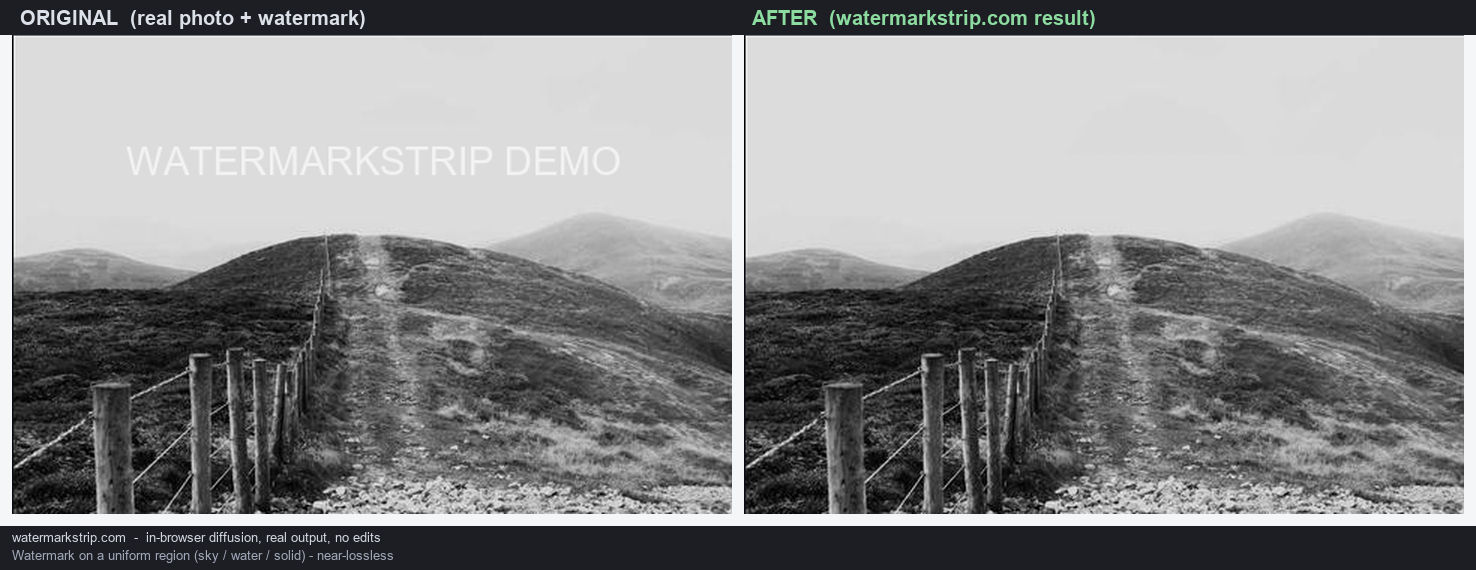
The four steps, and what each one actually does
The flow is four clicks, but every step has mechanics under it that are worth knowing before you start. All of the following is verified in the tool's script, not paraphrased from a feature list.
- Step 1 — Choose an image (or drop one in). Click Choose an image or drag a file onto the drop zone. PNG, JPG, WebP, BMP and GIF (first frame) are accepted; anything that is not an image is rejected with Please choose an image file. The picture is opened through a local object URL and drawn onto a canvas at its full original resolution — the code reads
naturalWidthandnaturalHeightand never downscales. Above roughly 40 megapixels you get a warning that processing may be slow, but it still runs. Nothing is uploaded at this step, or any other. - Step 2 — Paint over the watermark. The brush adjusts from 4 to 120 pixels (default 24). The red you see while painting is only paint: the visible strokes use
rgba(255,80,80,0.55), while what the tool actually remembers is a separate per-pixel mask of everything you covered. Paint the whole mark, plus a small margin — the next section explains why the margin matters. - Step 3 — Click Remove watermark. The status line reads Processing in your browser... and the fill starts after a deliberate 30-millisecond pause (inserted so the status text gets a chance to render). The fill itself is propagation: masked pixels are rebuilt from the surrounding known pixels, boundary inward, ordered by distance. There is no random component and no external AI model — the same input always produces the same output. When the status reads Done. Download your result below., the filled image has replaced the canvas.
- Step 4 — Download the result. PNG by default, or switch the Format selector to JPEG for a smaller file. The file is generated inside the tab via
toBloband saves aswatermark-removed.pngorwatermark-removed.jpg— the name is fixed, so rename it after saving if you keep an archive.
Two recovery moves worth knowing. Clear marks resets everything: the original pixels go back on the canvas and the mask is wiped. And if traces remain after a removal, you can simply paint the leftovers and click Remove watermark again — the code always recomputes the fill from the original pre-edit pixels with all your marks combined, so a second pass does not stack artefacts on top of the first result.
How much to paint: the margin rule
Most disappointing results come from one painting mistake, and it is worth forty seconds to understand it. The fill replaces exactly and only the pixels you marked. Everything unmarked stays original, byte for byte. That single fact produces two rules.
- Under-painting leaves ghosts. If you paint the letters of a watermark but not their anti-aliased edges — the 1-pixel blur where the white text blends into the photo — those edge pixels were never marked, so they survive untouched. The result is the classic faint outline. Fix: paint the leftover edge with a couple of pixels of margin and run the removal again (the second pass recomputes cleanly from the original, as described above).
- Over-painting starves the fill. Every masked pixel is a pixel the algorithm must invent instead of keep, and its only source material is the unmarked surroundings. A mask twice the size of the mark means twice the reconstruction from the same background. On smooth areas this is free; over busy texture it shows.
So the rule: cover the mark fully, add a small margin, and keep the mask tight where the background is detailed. Size the brush to the job — a small brush (the 4–40 range) around thin text edges beats scrubbing a 120-pixel brush across the whole region.
What this method removes well — and what it cannot
- Removes well: date stamps, short text, logos, and simple semi-transparent marks sitting over smooth or structured background — sky, water, walls, blurred backgrounds. There the propagation fill has clean material to rebuild from, and results are typically indistinguishable from the rest of the image.
- Struggles: very large solid marks (a huge banner leaves the fill almost nothing to propagate from), and marks over dense fine texture (fabric, foliage, crowds) where the rebuilt area is plausible but not a perfect continuation of the pattern.
- Cannot: auto-detect watermarks — you paint them, the tool does not find them for you; process video (images only in this build); or batch several pictures at once — it is one image per session by design.
That last line is not a hidden paywall, just the honest shape of a tool this small: load, mark, remove, download, then drop in the next file. If you are comparing tools before committing, the free-removal checklist on this site lists the five catches (metering, export watermarks, resolution and format taxes, trial clocks) to check in any tool — and this one passes all five, verified in its code.
The same four steps on any brush-based remover
"Remove watermark from image" and "get watermark off picture" are different phrasings of one action, and nearly every manual brush-based remover implements the same shape of it: select a file, mark the unwanted area, fill it, export. Once you know that, comparing tools gets simple, because the differences that matter are only three:
- Where the processing runs. Browser-local tools (this one) never transmit your picture — verifiable in the Network tab, and covered in detail by the no-upload verification guide here.
- What the export costs. Some tools give you a free fill and a paywalled download. The free-removal checklist exists for exactly this.
- What kind of pixels the fill produces. Propagation rebuilds from surrounding pixels and cannot invent content; generative cloud models can hallucinate new detail into the gap. The difference matters for photos of people and documents — the generative-vs-propagation guide covers it.
The point: the four steps transfer to any tool you try. The checks above are what should change your choice, not the wording of the landing page.
FAQ
- How do I remove a watermark from an image? Choose the image, paint over the watermark with the brush, click Remove watermark, download. In this tool that is the entire flow, and it runs in your browser without uploading the file.
- Is there a difference between removing a watermark from an image, a picture, or a photo? No — the searches use three words, the action is one. Same steps either way.
- How do I get a watermark off a picture without Photoshop? Use a browser tool like this one: no install, no account. Paint over the mark, click remove, download the result. The whole flow works on a phone browser as well as a desktop one.
- Why can I still faintly see the watermark after removal? You under-painted. The fill replaces only marked pixels, so unmarked anti-aliased edges survive as a ghost outline. Paint the leftover edges with a small margin and click Remove watermark again — the second pass recomputes from the original image, so it will not pile artefacts on the first result.
- Can I run the removal twice on the same image? Yes. Marks accumulate until you press Clear marks, and every removal run fills from the original pixels with all marks combined. Use Clear marks only when you want to start the marking over entirely.
- Should I download PNG or JPEG? PNG is lossless and the default — use it for further editing or archiving. JPEG is smaller for sharing. Either way the file saves as
watermark-removed.pngorwatermark-removed.jpg. - Can it handle several pictures at once? No. The tool is one image per session; drop in the next file when you are done with the current one. There is no batch queue and no account to keep history.
- Is it legal to remove a watermark from a picture? Depends on who owns the image and why you are editing it. Removing marks from your own photos, or from stock you licensed for comp use, is a different situation from stripping someone else's mark off their work. The legal guide on this site quotes the actual statutes — US DMCA §1202, EU Directive 2001/29/EC Article 7, and China's Copyright Law — with the penalties.