Does Watermark Removal Keep EXIF Data? Here Is What I Measured
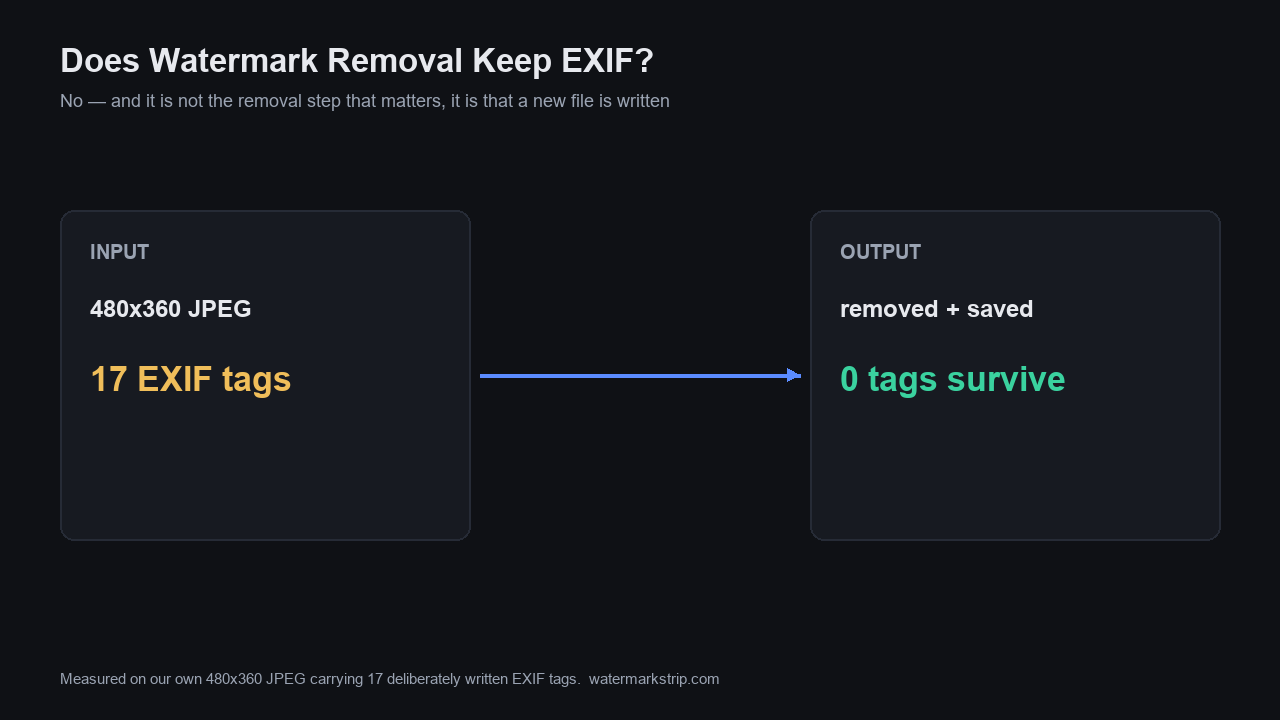
No. Not one tag survives — and I tested it rather than assuming it. I took a 480×360 JPEG carrying 17 deliberately written EXIF tags (camera make and model, date and time, artist, copyright notice, exposure, ISO, GPS coordinates), ran it through this tool's normal remove-and-download flow, and then read the output file back byte by byte.
Here is the result, in the two numbers that settle it:
- PNG output: the file contains exactly three kinds of chunk —
IHDR, a run ofIDAT, andIEND. There is noeXIfchunk. Zero EXIF tags. - JPEG output: the segments are
FFE0(JFIF) andFFE2(an ICC colour profile), then the image data. There is noFFE1“Exif” segment at all. Zero EXIF tags.
The source file's EXIF occupied a 436-byte APP1 segment. In the output that segment does not exist. Your camera model, your timestamp and your GPS coordinates are gone, and so is the copyright notice — which is worth knowing in advance, because some people want that notice kept.
Two things I want to be clear about, since they change how you should read this. First, this is not a privacy feature — nothing in this tool is designed to strip metadata; it falls out of the way the file is rebuilt, and the next section shows exactly where. Second, metadata loss is not the same as anonymity: if you are relying on this to hide a location, note that the tool never uploaded the file in the first place, so there was never a server copy to sanitise.
The test, so you can repeat it or dispute it
A negative claim like “no EXIF survives” is only worth anything if the input provably had EXIF to begin with. So here is the whole setup, and every number below is copied from the output of the scripts I actually ran.
- The source file. A 480×360 JPEG, 55,475 bytes, generated for this test. I wrote 17 EXIF tags into it and then read them back out of the saved file to confirm they were really there: 7 in IFD0 (Make
TestCamera, ModelEXIF-Probe 1, Orientation1, SoftwareProbeGen 0.1, DateTime2026:09:23 10:00:00, ArtistGuofu Chen, CopyrightCopyright (c) 2026 EXIF Probe), 6 in the Exif sub-IFD (ExposureTime1/125, FNumber28/10, ISO200, DateTimeOriginal, PixelXDimension480, PixelYDimension360), and 4 in the GPS sub-IFD (N31°14′12.34″, E121°28′56.78″). - The run. The file was loaded through this tool's own file picker in headless Chrome, the watermark was painted over with the brush, Remove watermark was clicked, and the result was exported through the tool's own download path. The removal demonstrably happened: the pixel at the centre of the painted area went from (255, 255, 255) — solid white watermark — to (79, 79, 79). The canvas was 480×360, the image's full original resolution.
- The inspection. Both exports were written to disk and then parsed: I walked the JPEG marker segments one by one, and listed every PNG chunk by type and length. No guessing, no “should be”.
The output files, read back segment by segment
This is the part no watermark tool I looked at ever publishes, so here it is in full.
Source, src-exif.jpg (55,475 bytes) — marker segments in order:
FFE0 JFIF · FFE1 len=436 “Exif” · FFDB · FFDB · FFC0 · FFC4 ×4 · FFDA
PNG output (261,612 bytes) — the complete chunk list is IHDR (13 bytes), 64 IDAT chunks, and IEND (0 bytes). That is the entire file. PNG can carry metadata in eXIf, tEXt, iTXt or zTXt chunks. None of them are present.
JPEG output (38,769 bytes) — marker segments in order:
FFE0 JFIF · FFE2 len=472 “ICC_PROFILE” · FFDB · FFDB · FFC0 · FFC4 ×4 · FFDA
The FFE1 “Exif” segment is simply absent. So are the GPS coordinates, and so is the camera make — the two things most people mean when they worry about metadata.
One detail in that list deserves its own sentence: the source file had no ICC segment, and the output JPEG has one. The 472-byte ICC_PROFILE was not inherited from your photo; it was written by the browser on export. So the file you download is not “your file with a patch applied” — it is a newly encoded file that happens to contain your pixels.
Why it happens: the download re-encodes from a canvas
This is not a setting and there is no switch to flip, which is worth saying plainly because people ask for one. The flow, read from this site's own code:
- When you choose a file, it is drawn onto a canvas at the image's natural width and height, and everything from that point on works on pixels held in that canvas.
- When you click download, the single export call re-encodes the canvas to PNG or JPEG and hands you the result.
- Nowhere in the removal script does the string “exif”, “metadata”, “iptc”, “xmp” or “icc” appear — I searched, and there are zero occurrences. There is no code that reads metadata, no code that copies metadata, and no code that strips it.
A canvas holds pixel values. It does not hold a metadata container. So metadata is not removed by an act of policy — there was nowhere for it to be carried across in the first place. This sentence is my reading of the mechanism rather than something a specification states in these words, so treat it as explanation, not as a quoted guarantee.
The useful consequence is that the behaviour is structural rather than discretionary: it does not depend on a promise, a setting, or this site keeping its word about anything. The less useful consequence is the same fact seen from the other side — nothing here can be configured to keep your metadata either.
(The same code path is also why the file never leaves your machine: there is no network call anywhere in the removal script. The verification steps you can run yourself are on Does an AI watermark remover upload your image?)
The one EXIF tag that changes your pixels before you edit anything
Orientation is the exception among EXIF tags, because it is the only one that visibly affects the image rather than just describing it. A phone photo is usually stored as a landscape-sized grid of pixels with an Orientation tag telling viewers to rotate it on display — the pixels themselves are never actually turned.
So: what happens to that tag here? I tested it with a second file. A 480×360 JPEG written with Orientation = 6 (rotate 90° clockwise) was loaded into the tool. The canvas came up as 360×480, and the PNG exported from it measured 360×480.
Two things follow, and both matter in practice:
- The rotation is applied, then baked in. You paint on the upright image you expect to see, which is the good news — you are not marking a sideways photo.
- The tag itself is discarded with all the others. The output is genuinely rotated pixels with no Orientation tag, which is the correct, self-consistent result. But it also means the orientation is now permanent: you cannot “un-rotate” it by editing a tag afterwards, because there is no tag left to edit.
Practical note: if you were relying on an Orientation tag to make a photo display correctly in some other viewer, that viewer will now show the pixels as they are, with no instruction to rotate them. For most people this is an improvement — the file now looks the same everywhere — but it is a real change to your file and not a no-op.
A second side effect: your PNG gains a channel
Measured, and not something I expected before running it:
- The source was an RGB JPEG — three channels per pixel.
- The PNG output is RGBA — four channels, with an alpha channel that the source never had.
- The JPEG output comes back as RGB, as you would expect.
Does this hurt you? For ordinary use, no — the added alpha channel is fully opaque, so the image looks identical. It matters only if you are feeding the result into something that inspects channel count, or if the file size surprises you. For the record, in this test the 480×360 output came out at 261,612 bytes as PNG and 38,769 bytes as JPEG from a 55,475-byte source. Those three numbers are from one specific synthetic image with flat colour regions and hard edges, so do not read them as a general rule about compression — a photograph with continuous tone will behave differently.
If you need the metadata kept, this is the wrong tool for that half of the job
Stating the limit directly, because finding out afterwards is the annoying version:
- Copyright notice and artist. Gone. If you need an attribution or copyright field to travel with the file, plan to write it back afterwards with a dedicated metadata tool, or keep an unmodified original alongside the edited copy.
- Date and time. Gone from the metadata. The file's filesystem timestamp is a separate thing and is not affected, but the “date taken” is no longer in the file.
- GPS coordinates. Gone. Note again that this is not what makes the tool private — the picture was never uploaded — so if your actual worry is “will my location sit on someone's server”, the relevant answer is the no-upload one, not this one.
- Camera make, model, lens and exposure. Gone. If you are publishing photos for a gear-related or technical audience, this is the trade-off.
My honest read: for the majority of uses this is a benefit people did not ask for and will not miss. For archival, editorial, or evidence-adjacent work, it is the one thing about this tool you should decide about before you run it, not after. And on that last category — if the image could ever end up in front of a court or a newsroom, the more important property is that the fill cannot invent detail that was not in your file; that argument is on Generative vs Propagation Watermark Removal.
What I did not test, listed rather than filled in
- A PNG source carrying an
eXIfchunk. I tested a JPEG source only. I have not run a PNG-with-EXIF case, so I am not going to tell you what happens there. - IPTC and XMP metadata. My test file carried no IPTC or XMP payloads, so this page says nothing about them.
- Embedded thumbnails. The source had none, so “the thumbnail is gone” is not a claim I can make — what I can say is that the output contains no EXIF thumbnail.
- Other browsers. Both runs were in Chrome. I did not repeat them in Firefox or Safari, and I am not extrapolating.
- What competing tools do. Nothing on this page describes any other product's behaviour. Separately, when I read ten competitor pages in depth and scanned 21,521 URLs across those sites' sitemaps for the benchmark behind this project (dated 2026-09-20), I found no mention of metadata or EXIF on any of them — one way or the other. So I have no sourced statement to make about how they behave, and I am not going to supply one.
- No traffic numbers on this page. No search volumes, no rankings, no index counts, no click counts. Nothing here is estimated.
How to check any remover yourself in under two minutes
The reason I published the raw segment lists above is that this check is easy, and you should not have to take anyone's word for it — mine included. On any tool, in any browser:
- Start from a file you know has EXIF. A photo straight out of a phone or camera is ideal. Check it first so you know what you started with.
- Run the tool and download the result. Do not screenshot it and do not copy-paste it — both of those destroy metadata on their own and would make the test meaningless. You need the actual downloaded file.
- Inspect the downloaded file. On Windows, right-click → Properties → Details tab is enough to see whether camera, date and GPS fields are populated. On macOS, Preview → Tools → Show Inspector → the EXIF or GPS tab. On any platform, a metadata tool will list every tag. Empty fields where the original had values means the metadata did not survive.
- Check the GPS tab specifically if location is what you care about. It is the tag most likely to be quietly dropped and the one with the most consequence.
If a tool's page does not tell you what happens to your metadata, that silence is itself the answer you should plan around — assume nothing survives, and keep your original.
Where every number on this page comes from
- All file-structure claims — the 436-byte
APP1“Exif” segment, the absence ofFFE1in the JPEG output, the PNG chunk list, the 472-byteICC_PROFILE, the RGB→RGBA change, and every byte size quoted — come from parsing the actual source and output files produced by the runs described above, on the date this page was published. - The 17 input tags and their values were written into the test file and then read back out of it before the run, to confirm they were really present.
- The 480×360 → 360×480 orientation result is from the second run, using a source written with Orientation = 6.
- The claim that no metadata-handling code exists in the removal script is a text search of that script for “exif”, “metadata”, “iptc”, “xmp” and “icc”, which returned zero matches.
- The absence of any network call is a search of the same script for the standard browser request APIs, also zero matches.
- The characterisation of the mechanism (that a canvas holds pixels and has nowhere to keep a metadata container) is my explanation, and it is labelled as such where it appears.
- The competitor observation is a negative result from the stated sample: ten pages read in depth plus a sitemap scan of 21,521 URLs, dated 2026-09-20. It is a statement about what I found, not about their products' behaviour.
Want to clear metadata on purpose? The 10-second fix
This page answers what our removal flow does to metadata. If your question is the deliberate one - how to strip every field from a photo yourself, which of the 18 fields a phone writes actually leak, and how the GPS block decodes to a map pin - that is a different question, answered with its own field-by-field test here: How to Clear Metadata from a Photo (Tested Field by Field).