Why JPEG Watermark Removal Looks Worse: the Source-Format Test
Yes, source compression changes the result - and it is not the removal step's fault. We ran the identical brush stroke over the identical watermark on one image saved three ways (lossless PNG, JPEG quality 90, JPEG quality 60) and measured every pixel of the three results. Outside the painted mask, all three outputs are bit-for-bit identical to their own source file: the tool changed nothing, damage included. Inside the mask, the fill can only work with pixels the source still has, so the JPEG's compression damage walks straight into the reconstructed area.
The measured version: in a smooth 200x80 patch untouched by the mask, the q90 output's error against the lossless original was 18.32 RMSE - exactly the error already in the q90 file (18.32). The q60 output carried 19.04, exactly its source's 19.04. And the removal added zero new damage anywhere outside the painted area: maximum channel difference 0 across 562,636 pixels per run.
Practical version: the tool cannot restore what the source never stored. Feed it the highest-quality file you have, export PNG, and expect smoother (not sharper) fills when the source is a low-quality JPEG.
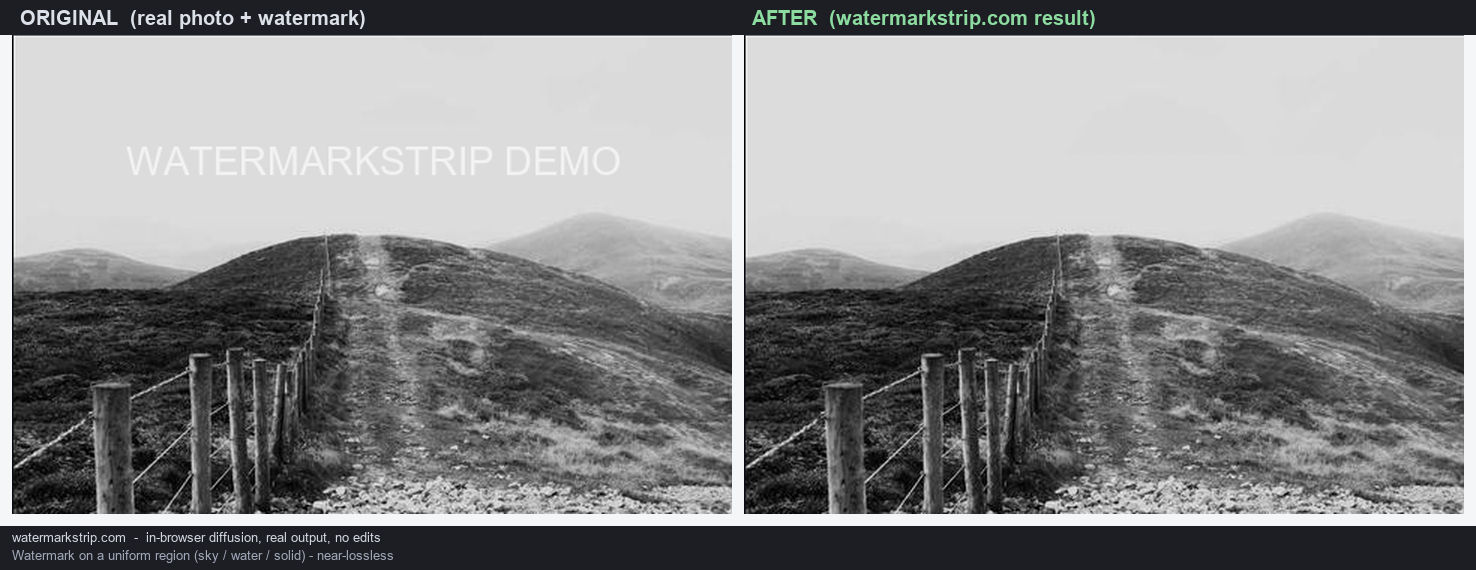
The test: one image, three files, one mask
One 960x640 test image was built once in Python (smooth gradient, fine 4-pixel texture bands, sharp geometric detail in the center), then saved three ways: a lossless PNG (12,290 bytes), a JPEG at quality 90 (171,493 bytes) and a JPEG at quality 60 (110,094 bytes). Same pixels, three levels of compression.
Each file was loaded into the real tool page in Chrome, painted over with the identical brush-60 rectangle trace, and removed with the app's own Remove button; the exports came from the app's own canvas export path, the same one used when you click Download. Two controls keep the comparison honest:
- Same mask. The paint path was scripted mouse movement, not hand-drawn, so all three runs painted the same shape in the same place.
- Deterministic engine. app.js contains no Math.random anywhere (checked before the run), and an independent rerun on a separate day reproduced every export file size exactly. The engine cannot be the variable; the source file is the only one left.
The analysis then compared all outputs pixel-by-pixel against the lossless original in three zones: the painted band (the only pixels the tool modifies), the area enclosed by it, and everything outside.
Finding 1: outside the painted area, output equals source, bit for bit
Each exported PNG was compared with its own decoded source, pixel by pixel, outside the painted band. Maximum channel difference: 0, in all three runs, across 562,636 pixels per run (555,676 outside the rectangle plus 6,960 inside it).
That cuts both ways. The tool never damages untouched pixels - and it never cleans them either. The compression error a JPEG already carries is still in the output, unchanged. Measured on a smooth 200x80 patch away from the mask and the center detail: the q90 file differs from the lossless original by 18.32 RMSE and the q60 file by 19.04. The tool's PNG export preserved those errors exactly, because it stores the decoded source state losslessly - PNG is a lossless format by definition.
For reference, the two JPEG sources were already damaged in the mask region too, before any removal: 22.76 dB (q90) and 22.17 dB (q60) PSNR against the lossless original.
Finding 2: inside the painted area, the fill inherits what the source kept
The painted band - 47,600 pixels, about 7.7 percent of the image - is the only area the tool modified. Within it, 86 to 88 percent of pixels changed against each run's own source, and the fill's error against the lossless original was 56.4 RMSE (PNG source), 55.1 (q90) and 51.2 (q60). The lossless run did not win, and that is the honest headline: the mask covered sharp geometric detail that no source still contained, so the fill's raw error is dominated by the missing content, not by the source format.
What the source does change is the character of what gets propagated in. The fill builds the masked area from the pixels surrounding it (see generative vs propagation for why nothing is invented): give it compressed, already-smoothed surroundings and the reconstruction inherits that smoothness. The receipt is exact. In the smooth untouched patch, the q90 run's output error equals its source's error to the last digit (18.32 vs 18.32), and the q60 run's equals its own (19.04 vs 19.04). Nothing invented, nothing repaired - the fill is only as clean as the ingredients the source still had.
This is why a low-quality JPEG result looks flat or waxy rather than sharper: the fine texture that would have been propagated into the masked area was flattened by the codec before the tool ever ran.
Finding 3: the two JPEG losses that exist before any removal
- Chroma subsampling (measured). Parsing the SOF0 markers of both JPEG sources shows luma sampled at 2x2 and chroma at 1x1 - that is 4:2:0. Color is stored at half resolution, so colored edges and thin colored strokes arrive pre-softened. This is the standard trade-off that makes small JPEG files possible; no removal tool can undo it.
- Quantization flattening (measured). In the smooth patch, the JPEG files already deviated from the lossless original by 18.32 (q90) and 19.04 (q60) RMSE before any processing. Fine texture is what low JPEG quality discards first - and fine texture is exactly what the fill would otherwise propagate.
- Bit depth (standard, flagged). JPEG stores 8 bits per channel here and the canvas is an 8-bit surface, so sources with more depth lose it before the fill runs regardless of tool.
One export-side note: choosing JPEG at download re-encodes the result. In the app's code the JPEG export calls toBlob with image/jpeg and no quality argument (verified in app.js before the run), so it uses the browser's default; parsing the three exported JPEGs shows 4:2:0 there as well. Exporting PNG skips re-encoding entirely.
What to do about it
- Feed it the best file you have. The fill's ingredients come from your source. A lossless PNG or the camera's original beats any JPEG; a q90 beats a q60 by construction.
- Do not re-save JPEG chains. Each JPEG re-save re-quantizes the pixels again (encoder behavior, standard). Every extra save flattens more of the texture the fill would use.
- Do not bother converting JPEG to PNG first. The canvas decodes the JPEG to the same pixels either way; conversion restores nothing. Convert only to stop further lossy re-saves in your own workflow.
- Export PNG. It preserves the result losslessly from now on and skips the JPEG re-encode.
- Set expectations, not blame. A smoother fill on an old q60 screenshot is source inheritance, not a tool failure. On textured sources, the brush margin rules in the four-step guide matter more than ever: under-painting leaves the compressed edge behind, over-painting eats good pixels.
How to reproduce
You need Chrome, Node with playwright-core, and Python with Pillow:
- Build one test image in Python and save it three ways: PNG, JPEG quality 90, JPEG quality 60.
- Script the same sequence against the real tool page for each file: load, paint (brush 60, rectangle trace), Remove, export.
- Compare the outputs against the lossless original: per-pixel diffs outside the painted band (expect maximum difference 0), RMSE per region, and JPEG SOF parsing for the sampling factors.
Environment for the numbers above: Chrome on Windows, the site's app.js and index.html unmodified, no hand measurement anywhere - every number comes from a script. The engine is deterministic, so a careful rerun should land on the same numbers.
FAQ
- Does removing a watermark make a JPEG worse? Not by itself. Measured: outside the painted mask, the output was bit-identical to its own source in all three runs. The damage you see in a JPEG result was already in the file.
- Should I convert the JPEG to PNG before removing? It will not change the removal - the canvas works on the same decoded pixels either way. Convert only to avoid further lossy re-saves in your own chain.
- Why does my result look smooth or waxy? The fill propagates your source's surrounding pixels; if compression already flattened them, the reconstruction inherits that. The q60 equality (19.04 vs 19.04) is the receipt.
- Does PNG export restore my original quality? No. PNG preserves the current state losslessly from now on; it cannot recreate detail the source never stored.
- Which export should I pick? PNG. The app's JPEG export re-encodes at the browser's default quality with 4:2:0 subsampling (measured on its output); PNG does not re-encode.
- Was the fill different for the JPEG sources? No. Same deterministic propagation - app.js has no Math.random (verified before the run) and a full rerun reproduced every export size exactly. Only the input pixels differed.