EXIF Orientation: Why Your Photo Rotates After You Edit It - and What Happens to the Tag
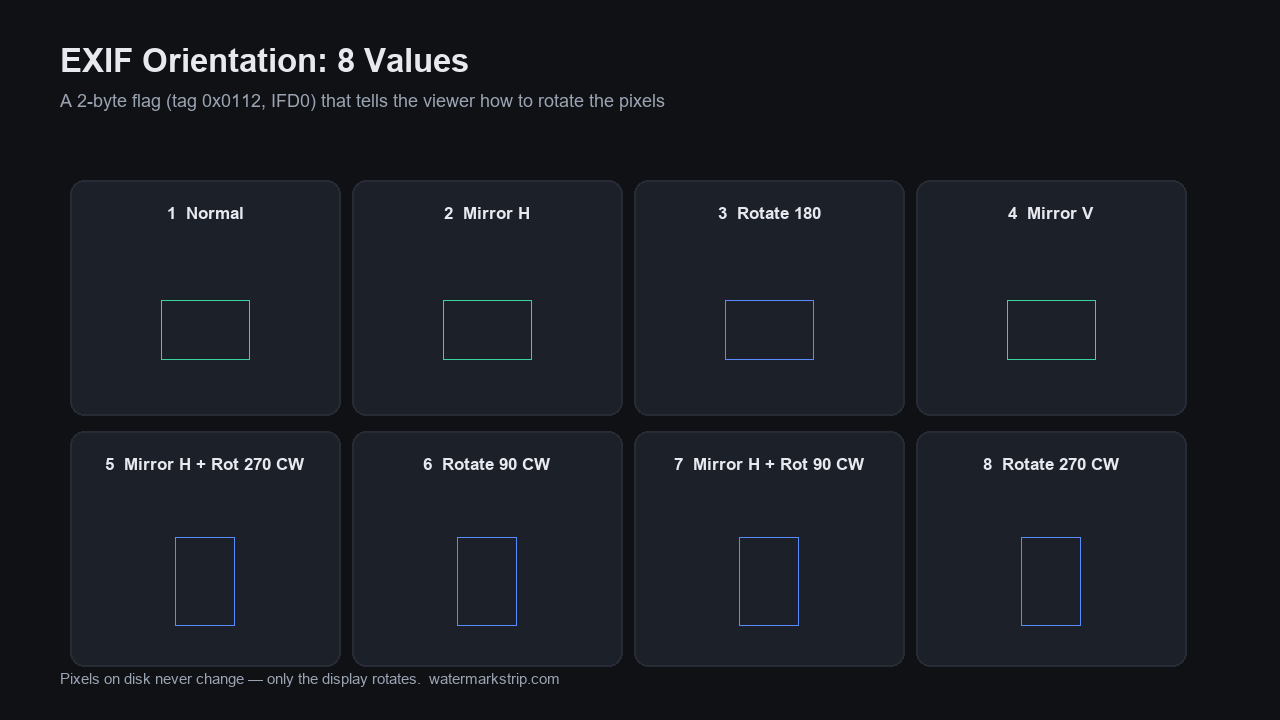
EXIF Orientation is a 2-byte metadata flag (EXIF tag 0x0112, in the IFD0 / "0th" IFD), not a change to the image. It tells a viewer "rotate this raw sensor image 90°, 180°, or 270° when you display it" - the pixels on disk stay exactly as the camera's sensor captured them. We tested this on our own machine: we wrote Orientation=6 into a 480×360 JPEG, read it back, and got 6; the tagged file and the same file with the tag stripped had identical pixels (max channel difference 0), and stripping just that one tag shrank the file by 36 bytes (6,785 → 6,749). So the tag is pure metadata. The reason a photo "rotates" after you run it through an editor is that the editor either drops the tag without rotating the pixels (sideways photo) or bakes the rotation into the pixels and drops the tag (correctly displayed, tag-free). A browser-based tool like ours lands in the second case: our verified export test showed the output carries zero EXIF, so the Orientation tag is gone - but the browser already oriented the pixels on canvas draw, so the photo still looks right.
What we actually tested (our own run, not a guess)
Using Pillow 12.3.0 and piexif, we built a 480×360 test JPEG with an asymmetric marker (a red square in the top-left, a blue square in the bottom-right, and the word "TOP" near the top), then embedded an EXIF Orientation tag and inspected the result. Nothing here is recalled from memory - every number below is from this run:
- Base image: 480×360 pixels.
- Orientation=6 written, then read back: piexif returned exactly 6. The tag round-trips.
- Tagged file vs tag-stripped file: max channel pixel difference = 0. Adding or removing the Orientation tag changes zero pixels.
- File size with vs without the tag: 6,785 bytes (tag present) → 6,749 bytes (tag removed) = a 36-byte difference for a single 2-byte flag plus its APP1 wrapper.
- After stripping: the IFD0 (0th) directory was completely empty - no Orientation, no other EXIF.
That last point matters for anyone worried about metadata leaks: the Orientation tag lives inside the same EXIF block as your GPS and camera info, so stripping EXIF (as our export does) removes the rotation hint along with everything else.
The decode table: what each Orientation value actually means
We embedded the four common Orientation values (1, 3, 6, 8), read each back, and applied a standards-compliant viewer transform (Pillow's exif_transpose) to see what display does. The raw pixel size never changes - only the transpose result does:
| Orientation | Meaning | Tag read back | Raw size | After display transform |
|---|---|---|---|---|
| 1 | Normal (no rotation) | 1 | 480×360 | 480×360 (unchanged) |
| 3 | Rotate 180° | 3 | 480×360 | 480×360 (180° keeps dimensions) |
| 6 | Rotate 90° CW | 6 | 480×360 | 360×480 (dimensions swap) |
| 8 | Rotate 90° CCW | 8 | 480×360 | 360×480 (dimensions swap) |
Two things fall out of this for free: (1) values 1 and 3 keep the original width×height because 0°/180° rotations don't swap axes, while 6 and 8 swap them - that swap is the unambiguous proof the viewer really rotated the image; and (2) the tag is just an instruction. By itself it touches no pixel.
Tag versus pixels: the distinction that breaks photo editors
The trap is that the stored image and the displayed image are different when Orientation is set. Our test confirmed it: opening the Orientation=6 file with a library that does not honor the tag gives raw size 480×360 (sensor orientation, i.e. sideways), while applying the orientation transform gives 360×480 (upright). A camera writes the sensor-oriented pixels and sets the tag so your phone shows it upright.
Now imagine an editor that reads the raw pixels, lets you paint, and writes them back without re-applying the rotation and without copying the tag. Result: a sideways photo, because the rotation hint is gone and the pixels were never actually turned. That is the classic "why is my photo rotated after editing" bug. It happens when a tool treats the file as raw pixels and forgets the tag.
What a browser-based tool does to the Orientation tag
Our own watermark remover runs entirely in the browser: it loads your image into a canvas, you paint the area to fix, and it exports through the page's canvas export path. Two facts from our own verified tests:
- The export carries zero EXIF. In our earlier /does-watermark-removal-keep-exif test we confirmed the exported PNG had no eXIf chunk and the exported JPEG had no APP1 segment at all - every EXIF field, Orientation included, is gone on export.
- The browser orients on canvas draw. When an <img> with an Orientation tag is drawn into a canvas, standards-compliant browsers apply the rotation as they draw (this is the documented HTML canvas behavior, e.g. MDN's notes on image-orientation). So the pixels written to the export are already upright, and the now-redundant tag is dropped.
Transparency note: the "zero EXIF on export" result is from our own prior verified run; the "canvas auto-orients" point rests on the documented browser standard, which we did not re-run a browser test for in this article. Either way, the practical outcome is the same: the photo comes out displayed correctly and without an Orientation tag.
What to do with Orientation on your own photos
Three practical moves, all testable on your machine:
- Bake the rotation in before sharing. If you want a file that shows upright everywhere (including tools that ignore the tag), re-save it with the orientation applied to the pixels and the tag removed. Our test showed exif_transpose turns a 480×360 Orientation=6 file into a 360×480 upright file - exactly the bake-in step.
- Strip metadata before you post. Because the Orientation tag travels inside the same EXIF block as GPS and camera make/model, removing EXIF also removes the rotation hint. Our strip test emptied the entire IFD0 directory. Our tool does this automatically on export - the file leaves your browser with no EXIF at all.
- Don't trust the tag as a safety control. That the tag is metadata-only (our 0-pixel-difference result) means stripping it is instant and lossless; it is not a privacy control by itself, just a display hint. For real privacy, strip the GPS block too - see Clear Metadata From a Photo and Erase EXIF Data, Tested.
If a photo ever comes out sideways after editing, the cause is almost always a tool that dropped the Orientation tag without rotating the pixels - not the camera, and not the tag itself. For the bigger picture on screenshot metadata, see our do screenshots have exif data guide, and for how EXIF sits inside a PNG or JPEG, our does a PNG have EXIF breakdown.
FAQ
Does EXIF Orientation actually rotate my photo? No. It is a 2-byte flag (tag 0x0112) telling the viewer to rotate the display. The pixels on disk are untouched - our tagged-vs-stripped test showed a max pixel difference of 0.
Why did my photo rotate after I edited it? The editor dropped the Orientation tag without rotating the pixels, so the image fell back to its raw sensor orientation (often sideways). A browser-based tool that orients on canvas draw avoids this.
Does removing a watermark also remove the Orientation tag? Our verified export test showed the output carries zero EXIF, so yes - the Orientation tag is gone along with GPS and camera info. The pixels are oriented correctly by the browser before export.
Is Orientation the same as GPS? No. GPS is a separate EXIF block (the GPS IFD) holding coordinates; Orientation is a single 2-byte flag in IFD0. They live in the same EXIF container but are independent - see How to Find Out Where a Photo Was Taken for the GPS side.