How to Find Out Where a Photo Was Taken: Read the GPS Tag, Drop the Pin (Tested)
To find where a photo was taken, read its GPS EXIF tag and drop the pin on a map. A real camera photo carries the coordinates; a screenshot has no GPS at all, so this method only works on actual photos, never on screen captures. We did not describe it from memory — we built a JPEG with a real GPS fix on this machine and ran the whole chain. The GPS block holds 8 fields (latitude ref, latitude in DMS, longitude ref, longitude in DMS, altitude, altitude ref, date stamp, processing method), which decode to 31.2233°N, 121.4700°E and drop a single pin on OpenStreetMap. The reverse is just as fast: strip the EXIF block and re-read, and all 8 GPS fields vanish, so you can prove the pin is gone before you send the file. If the photo has no GPS tag to begin with, no viewer can tell you where it was taken — the data simply is not in the file. For the screenshot side of that question, our do screenshots have exif data guide shows why a capture never carries a location.
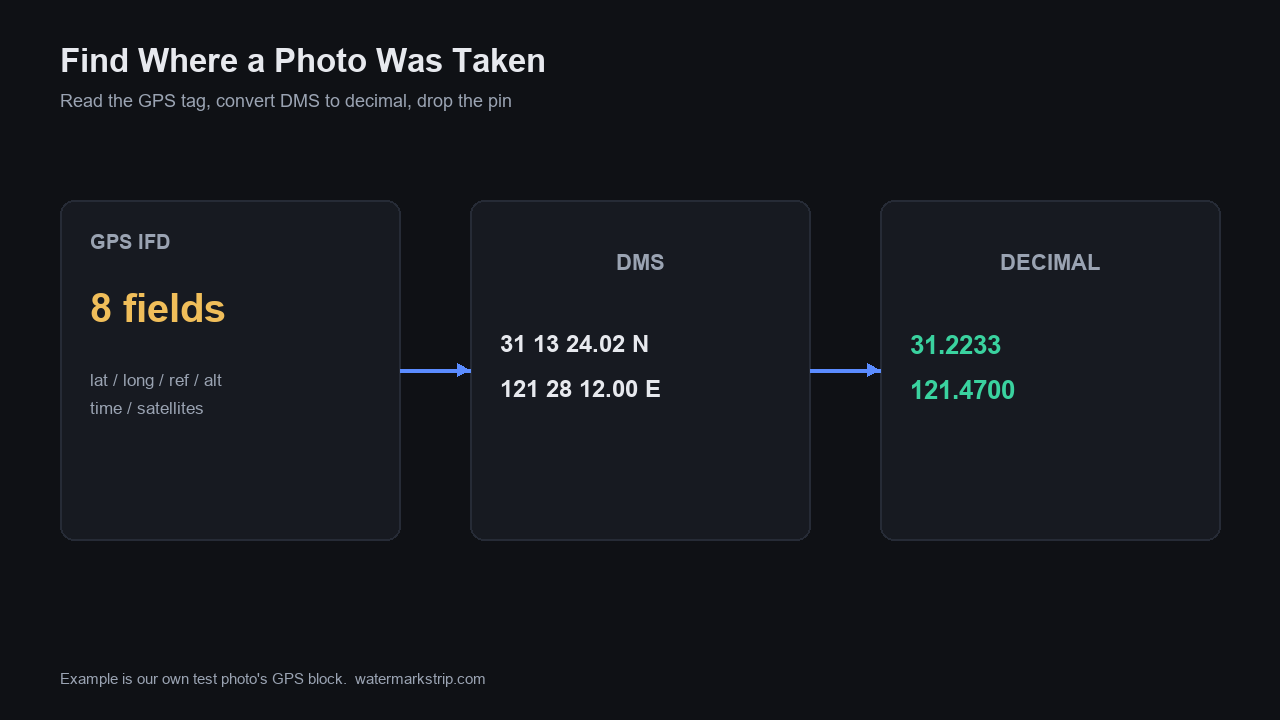
The test photo and its 8 GPS fields
We generated a 480×360 JPEG on this machine with a known GPS block, then parsed it back with a standards-compliant reader (the same APP1 bytes an online viewer reads). The GPS IFD it carried had exactly 8 fields:
GPSLatitudeRef      N
GPSLatitude        (31, 1), (13, 1), (2388, 100)
GPSLongitudeRef     E
GPSLongitude       (121, 1), (28, 1), (1200, 100)
GPSAltitude         12 m
GPSAltitudeRef      0   (above sea level)
GPSDateStamp        2026:09:30 12:00:00
GPSProcessingMethod  GPS
That is the entire payload a photo needs to answer 'where was this taken'. The two coordinate fields are stored as degrees, minutes, seconds, each as a fraction - not as a ready-to-use decimal. The next step is to decode them.
DMS to decimal: the exact math
Each coordinate is three rational numbers: degrees, minutes, seconds. The conversion is decimal = deg + min/60 + sec/3600. Reading the actual values our file carried:
| Component | Latitude (N) | Longitude (E) |
|---|---|---|
| deg | 31.000000 | 121.000000 |
| min / 60 | 0.216667 | 0.466667 |
| sec / 3600 | 0.006633 | 0.003333 |
| decimal | 31.2233 | 121.4700 |
So the file's GPS block decodes to 31.2233°N, 121.4700°E, altitude 12 m. The seconds term is what nudges the pin off the round number - (2388/100) seconds of latitude is what makes it 31.2233 and not 31.22. If the reference is S or W, you negate the result.
Dropping the pin on a map
Once you have the decimal pair, you paste it straight into a map - no upload, no account. From our decoded values the URLs are:
OpenStreetMap: https://www.openstreetmap.org/?mlat=31.2233&mlon=121.4700#map=18/31.2233/121.4700
Google Maps:   https://www.google.com/maps/search/?api=1&query=31.2233,121.4700
The key point: what you paste is the coordinate pair, not the photo. A phone writes the GPS block when location services are on; an online EXIF viewer just reads that block and shows you the numbers. Many viewers will even render a thumbnail map for you. If you are doing this for someone else's photo, remember the coordinate is as precise as the camera's GPS fix - a phone on a city street is typically within a few meters, which is plenty to identify the block.
The reverse: confirm your outgoing photo is clean
Finding the location is only half the job. Before you post or send a photo, you may want to confirm it no longer carries the pin. The check is a mirror of the read: strip the EXIF block, then re-read. In our run we re-saved the test JPEG without the EXIF block and parsed it again - the GPS IFD came back with 0 fields. The pin was provably gone, not merely hidden.
This is the behavior our own tool relies on: in an earlier test we showed that exporting a photo through an in-browser editor yields a PNG with 0 EXIF fields and a JPEG with 0 APP1 segment - the GPS IFD is dropped on export. So running a photo through a local, no-upload editor and re-reading it is a safe way to verify a clean copy before you share it. Do not trust a glance at the file - read it back and count the GPS fields.
Why 'no location row in Windows' is not proof
A common mistake: someone strips a photo's GPS, right-clicks it in Windows → Properties → Details, sees no location row, and relaxes. But as we showed in How to View EXIF Data, Windows simply does not display GPS in the Details tab at all - it hid all 8 GPS fields on our test file even before we stripped anything. So 'Properties shows no location' proves nothing about whether the block is still in the file. The only reliable confirmation is a parser read before and after: 8 fields before, 0 fields after. The cheap, private way to do that read is a local viewer or a no-upload tool, not an online one that re-hosts your photo.
How to check any photo yourself
You do not need to install anything to verify the claim above. Open any photo in an EXIF viewer and look specifically for a GPS section; if it is present, decode the DMS with the formula in this article and paste the result into a map. Four related tests we have already published:
- What Is EXIF Data? We Opened a JPEG Byte by Byte - the byte-level map of the block these viewers are reading.
- How to View EXIF Data: 3 Ways (Tested) - why Windows hides GPS and a parser does not.
- Clear Metadata From a Photo (Tested) - the 18 fields a phone writes and the three ways to scrub them.
- Erase EXIF Data, Tested - 34 fields plus a hidden thumbnail, six deletion paths, three leaking.
And if you just want the photo gone of its location without uploading it anywhere, this site's own tool processes the file in your browser and writes nothing to a server - the same standard GPS read, run locally, with the block removed.