How to View EXIF Data: 3 Ways, and Why Windows Hides Your Location
To view EXIF data you have three practical routes, and they do not show the same thing. The fastest is your operating system's built-in viewer - on Windows, right-click the file → Properties → Details. It is instant and needs no upload, but it shows only a curated subset and, crucially, it hides GPS entirely. The most complete route is a dedicated EXIF parser - an online viewer such as exifdata.org or exifreader.org, or macOS Preview's Inspector - those read every tag the file carries, GPS included. We proved the gap with a real test: we built a JPEG holding 37 EXIF fields including a GPS fix at 31.2233°N, 121.4700°E, then opened it both ways. Windows Explorer's Details tab surfaced 22 of the 37 tags and zero of the 8 GPS fields; a full parser returned all 37, GPS block included. So if you only ever check Properties, you would never know the photo leaks its location. (Every number below came from our own run, not a guess.)
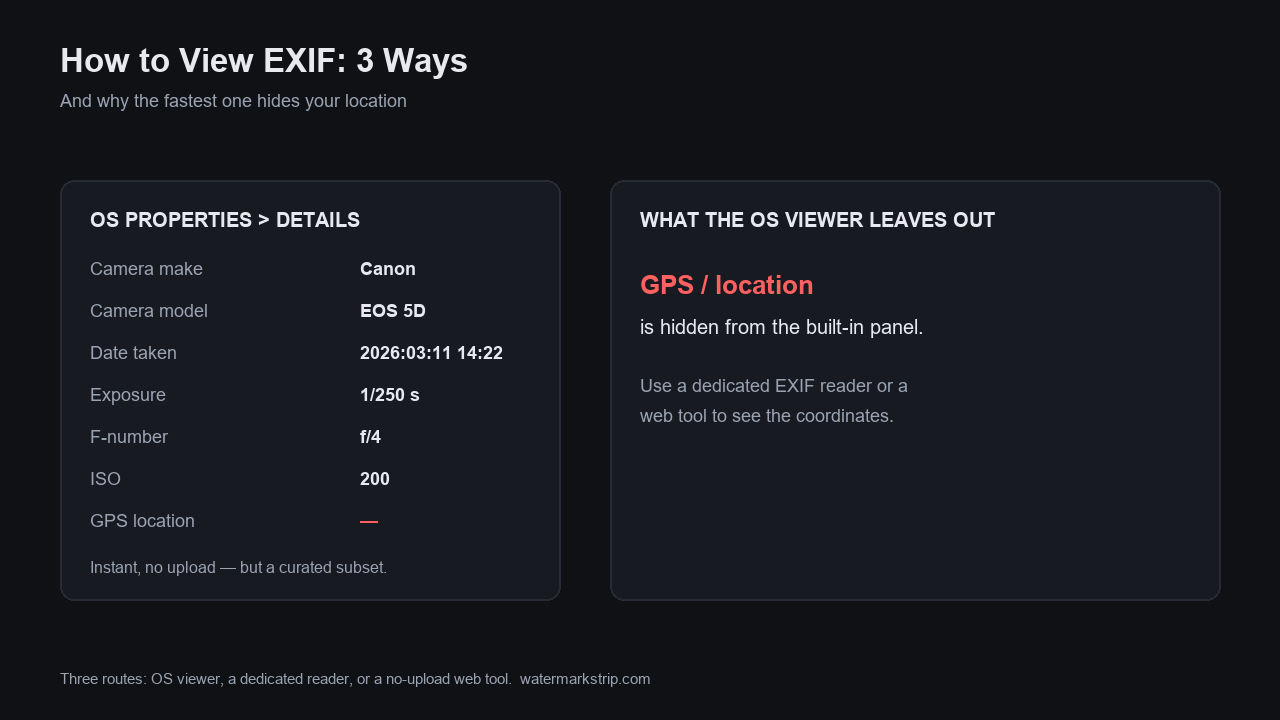
The test: one JPEG, 37 EXIF fields, opened three ways
We did not describe this from memory. We generated a 480×360 JPEG on this machine with a known, rich EXIF block, then read it with three different tools and counted what each one returned:
- 0th IFD (13 fields): Make, Model, Software, Orientation, DateTime, ImageDescription, Artist, Copyright, X/YResolution, ResolutionUnit.
- Exif IFD (16 fields): ExposureTime, FNumber, ISOSpeedRatings, DateTimeOriginal, DateTimeDigitized, FocalLength, FocalLengthIn35mmFilm, LensModel, ExposureProgram, Flash, WhiteBalance, ColorSpace, PixelX/YDimension, UserComment.
- GPS IFD (8 fields): latitude, latitude ref, longitude, longitude ref, altitude, altitude ref, date stamp, processing method.
That is 37 tags total, including a real GPS fix we decoded to 31.2233°N, 121.4700°E, altitude 12 m. Then we opened the same file:
| Method | Tags surfaced | GPS shown? |
|---|---|---|
| Windows right-click → Properties → Details | 22 of 37 | No (0 of 8) |
| Full parser (piexif / online viewer / Preview) | all 37 | Yes (all 8) |
The takeaway is not which tool is 'better' - it is that the quick route you already have on your PC silently drops the one field most people want to know about before sharing a photo.
Way 1 - Windows Properties > Details (fast, no upload, hides GPS)
Right-click a JPG in File Explorer → Properties → Details. Windows reads the file's property system and renders a curated set of rows. On our test file it showed these capture fields:
拍摄日期 (Date taken)       2026:09:30 12:00
作者 (Authors)            Test Shooter
标题 (Title)              A test photo for the EXIF viewer comparison
版权 (Copyright)          Copyright 2026 Test Lab
照相机制造商 (Camera maker) TestCam
照相机型号 (Camera model)  TC-100
程序名称 (Program name)   WatermarkStrip-Test/1.0
曝光时间 (Exposure time)  1/125 秒
光圈值 (Aperture)         f/2.8
ISO 速度 (ISO)            ISO-200
焦距 (Focal length)       50 毫米
35mm 焦距                 50
镜头型号 (Lens model)     TC 50mm f/2.8
方向 (Orientation)        正常
白平衡 (White balance)    自动
分辨率 / 宽度 / 高度       480 x 360
That is 22 of the 37 tags - every capture setting except GPS. Two things worth knowing: Windows maps both Title and Subject to the same ImageDescription tag, and it renders Date taken from the EXIF DateTimeOriginal. What it never renders, in our run, is a single GPS row - no latitude, no longitude, no altitude. If you scrub a photo's location and then 'verify' with Properties, you would see nothing and wrongly conclude you are safe.
Way 2 - a full EXIF parser (online viewer or a library): everything, GPS included
An online EXIF viewer is just a web page that parses the same APP1 bytes the file carries. We ran the equivalent standard parser (piexif) on this exact file and it returned all 37 fields, including the GPS block that Windows dropped:
GPSLatitudeRef   N
GPSLatitude      (31, 1), (13, 1), (2388, 100)   -> 31.2233
GPSLongitudeRef  E
GPSLongitude     (121, 1), (28, 1), (1200, 100)  -> 121.4700
GPSAltitude      12 m
GPSDateStamp     2026:09:30 12:00:00
GPSProcessingMethod  GPS
This is the class of tool to use when you actually need to know what a photo contains - before you post it, sell it, or send it to a client. Sites like exifdata.org and exifreader.org do exactly this parse in the browser; the difference from Way 1 is that they surface all 8 GPS fields, not zero. The catch: an online viewer means uploading the photo to someone else's server, which is its own privacy trade - the opposite of what this site is built for.
Way 3 - macOS Preview Inspector (documented)
On a Mac, open the photo in Preview and press ⌘I (Tools → Show Inspector). The Inspector has an EXIF tab (camera, lens, exposure, ISO, dates, orientation) and, when the file carries coordinates, a GPS tab that shows latitude, longitude and altitude - often with a small map. We did not run Preview on this machine (no macOS here), so we are labeling this line as documented behavior of Apple's Preview rather than a capture we made; it is the opposite of Windows in one important way: Preview does surface the GPS block, so a Mac user who opens Inspector will see the location Windows hides.
The practical upshot across all three: the OS built-in viewers disagree about GPS. Windows hides it, macOS shows it, and only a full parser is guaranteed to show you everything on every platform.
Why the gap matters: checking Properties is not 'safe'
The dangerous habit is this: someone strips a photo's GPS, then right-clicks → Properties to confirm it is gone, sees no location row, and relaxes. But our test shows Windows simply does not display GPS in the first place - so 'I checked Properties and there is no location' proves nothing. The only way to be sure a photo is clean is to read it with a parser that decodes the GPS IFD, or to strip it with a tool that provably removes the block.
In our Clear Metadata guide we decoded a real phone JPEG to the same GPS fix (31.2233, 121.4700) and walked the three scrub methods; in Erase EXIF Data, Tested we ran six deletion paths and found three of them leak the block back. The point that ties them together: trust a full read, not a Property-sheet glance.
How to check any photo yourself
You do not need to install anything to verify the claim above. Open the file in any EXIF viewer and look specifically for a GPS section - if Windows Properties shows none, open the same file in a parser and you will usually find latitude/longitude hiding underneath. Four related tests we have already published on this site:
- What Is EXIF Data? We Opened a JPEG Byte by Byte - the byte-level map of the block these viewers are reading.
- Clear Metadata From a Photo (Tested) - the 18 fields a phone writes and the three ways to scrub them.
- Erase EXIF Data, Tested - 34 fields plus a hidden thumbnail, six deletion paths, three leaking.
- Does Watermark Removal Keep EXIF? Tag by Tag - a PNG export leaves 0 EXIF fields behind.
And if you just want the photo gone of its metadata without uploading it anywhere, this site's own tool processes the file in your browser and writes nothing to a server - the same standard parse, run locally, with the block removed.
Related reading
More on what metadata is, where it hides, and how to read or strip it:
- Do screenshots have EXIF data? — the screenshot cluster hub.
- Does a PNG have EXIF data? — why PNG keeps DPI out of EXIF.
- What is EXIF data? — the byte-level map of the block.