Turn Off Camera Location: How to Stop Your Phone From Tagging Every Photo With GPS
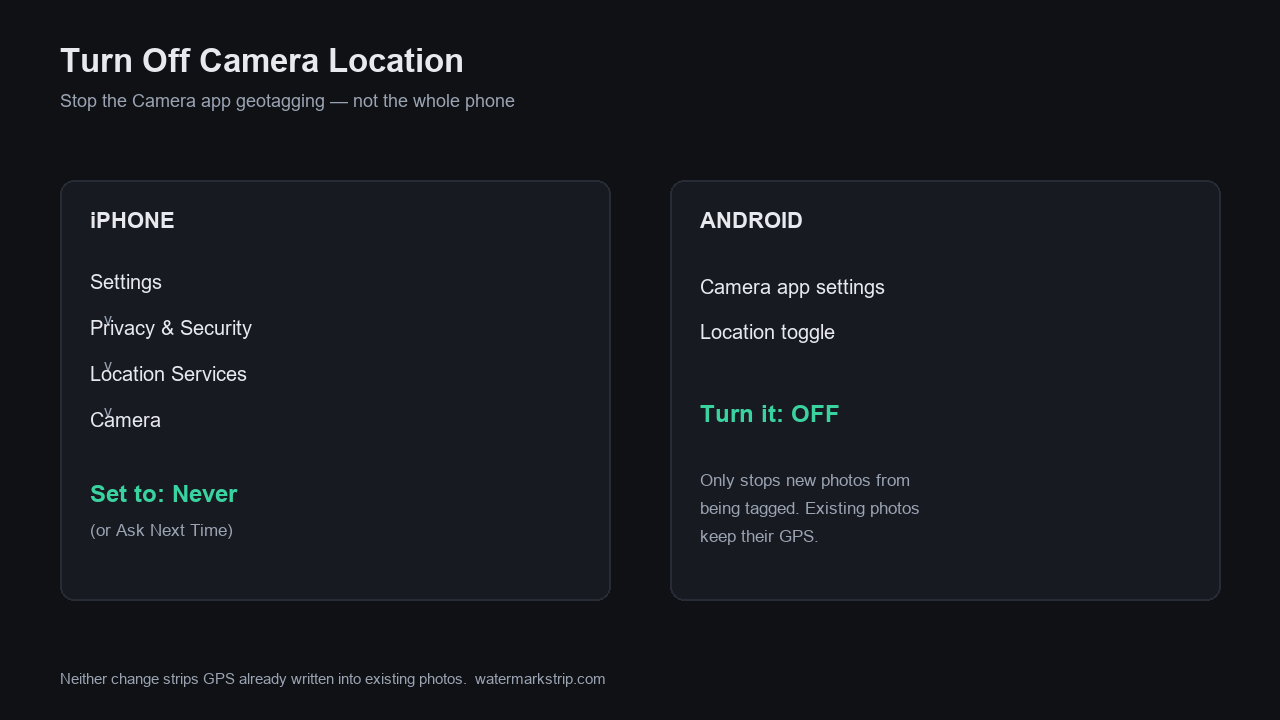
To stop your phone from geotagging photos, turn off location for the Camera app - not the whole phone. On iPhone: go to Settings > Privacy & Security > Location Services > Camera and set it to Never (or Ask Next Time). On Android: open the Camera app's settings and turn the location toggle off. Both changes only stop GPS from being written into photos you take from now on; pictures already on the phone still carry their coordinates and have to be stripped separately (we cover how below, with our own tested tools). One honest caveat up front: Google Photos cannot remove a location your camera added, and iPhone's "Hide Location" only hides a copy - the original still has it.
Why your camera writes your GPS in the first place
When location is on, the Camera app asks the OS for a fix and stamps the result into the photo's EXIF metadata - the same GPS block we dissected byte by byte in What Is EXIF Data?. In our own test we wrote a GPS block into a 480x360 JPEG and decoded it straight back to 31.2233°N, 121.4700°E - street level. That is exactly what your phone writes on every geotagged shot, which is also why a photo's GPS tag drops a pin on a map (see How to Find Out Where a Photo Was Taken, where we turned that same coordinate into a map pin). The fix below is simply: stop the camera from asking for that fix.
iPhone: the exact steps (straight from Apple's support page)
Apple's own support page - support.apple.com/en-gb/102515 (Published Date: May 25, 2026) - gives the path in plain words:
You can turn Location Services on or off in Settings > Privacy & Security > Location Services. You can control which apps and system services have access to Location Services data individually.
It also states the consequence directly:
When Location Services are off, apps can't use your location from Location Services in the foreground or background.
The steps that stop geotagging while leaving Maps and Find My working:
- Open Settings.
- Tap Privacy & Security → Location Services.
- Scroll down to Camera and tap it.
- Under Camera, iOS shows its standard per-app location menu - Never, Ask Next Time, or While Using the App. Pick Never to stop geotagging entirely (or Ask Next Time if you want to approve it per shot).
You can also flip the whole Location Services switch off at the top, but that kills GPS for every app; setting Camera to Never is the surgical fix.
Android: the exact steps (straight from Google's support page)
Google's Photos Help page - support.google.com/photos/answer/6153599 - gives the camera-side instruction verbatim:
Control whether your camera adds location information: 1. On your Android device, open the Camera app's settings. 2. Turn the location setting on or off. Important: This setting varies by manufacturer.
What that looks like in practice:
- Open the Camera app.
- Tap Settings (the gear icon).
- Find the location toggle and turn it off.
Google is explicit that the toggle name changes by maker. Commonly seen labels: Save location (Pixel, Motorola), Location tags (Samsung), Store location data (OnePlus), Save location info (Xiaomi). The action is the same on every brand - just the words differ.
The catch: this only fixes photos you take from now on
Turning the setting off does not touch photos already on the device. And there is a trap even inside Google's own app. The same Google support page states it plainly:
You can only change or remove estimated locations and locations that you've manually added to your photos. If a location was automatically added by your camera, you can't update or remove the location in Google Photos.
So Google Photos will happily strip a location it guessed, but it cannot touch the GPS your camera embedded. On iPhone the situation is similar: the Photos "Hide Location" command is non-destructive - it hides the copy you see and export through the Photos pipeline, but the untouched original (and any "Export Unmodified Original" or iCloud.com download) still carries the GPS.
To actually remove GPS from a photo you already have, strip the EXIF. We tested both routes on this site: Clear Metadata From a Photo walks the 18 fields a phone writes and shows the GPS being decoded and removed, and Erase EXIF Data, Tested runs six deletion paths and flags the three that leak. Our own tool does the stripping in your browser - no upload, no server.
What turning it off prevents - and what it doesn't
- Prevents: a GPS EXIF block in every photo you take after the change.
- Does not remove: GPS from photos already taken - those need stripping (links above).
- Does not stop: other apps (social, messaging, map) from geotagging what you share through their own pipelines.
- Does not hide: location revealed by visible landmarks. Google's own note: "Even if you hide your photos' locations from people, they can guess the location based on landmarks in your photo."
Worth knowing: screenshots are a different file and do not carry your camera's GPS - we confirmed that in Do Screenshots Have EXIF Data? by reading the bytes of real Windows snips (zero GPS fields).
Already have a geotagged photo? Strip it here, on your device
If a photo in your library already has coordinates, the permanent fix is to cut the GPS out of the file - not to hide a copy. Our tool processes the image entirely in your browser and never uploads it; the result is a new file with the GPS block gone. Pair it with the steps above and future shots stop collecting coordinates while past shots get cleaned. See Clear Metadata From a Photo for the field-by-field walkthrough and Erase EXIF Data, Tested for the deletion-path comparison.